
Disclosure: Tech Interval LLC, which publishes Tech Interval, also operates ImgColorPicker.org. We have listed it first for the capabilities described below, and we have been specific about what each competing tool does better so you can judge that for yourself.
Picking a colour sounds trivial until you actually need to do it. You have a screenshot with a brand blue you need to match, a photo whose palette you want to reuse, or a design that has to pass a contrast audit — and suddenly “what colour is that?” turns into a real question with a wrong answer.
We looked at the tools people actually reach for, and judged them on four things: how accurately they read a colour, how good the extracted palette is, whether they check contrast honestly, and what happens to your image.
That last one matters more than most roundups admit. A lot of “free online” tools upload your file to a server. If you are sampling colours from an unreleased design, a client mockup, or a confidential document, that is a meaningful difference.
1. ImgColorPicker.org — best for pulling colour out of an image
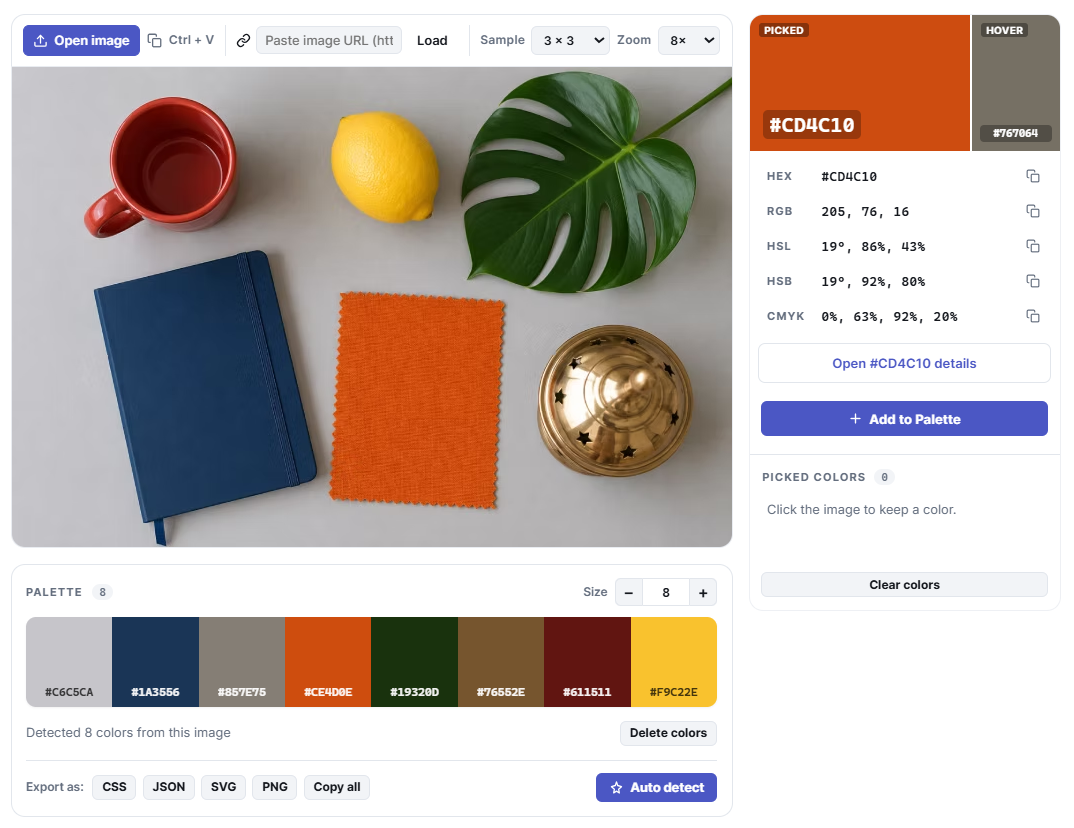
If your starting point is an image, this is the most complete option.
Open a file, paste from the clipboard, or drag one in, and the picking happens entirely inside your browser — the file never reaches a server. A magnifier shows the individual pixels under your cursor with a grid over them, so you can see exactly which pixel you are about to take, and a sample-size control lets you average across a 3 × 3 or 5 × 5 area. That second control matters more than it sounds: JPEG compression leaves neighbouring pixels slightly different from each other, so a single-pixel reading of a photograph can be misleading.
Every value updates live in HEX, RGB, HSL, HSB and CMYK, each individually copyable.
Where it separates itself is palette extraction. Most tools quantise colour in CIE Lab. ImgColorPicker.org uses OKLab, a newer perceptual space that is noticeably better behaved in the blue region — the place where Lab is known to produce colours that are mathematically close but visually wrong. The palette is adjustable from 1 to 64 colours, sorted so the most dominant colour comes first, and each swatch shows a marker on the image itself pointing at where that colour came from. That last detail is the one we missed most when we went back to other tools.
Two things extend it past a picker:
- A contrast checker carrying both WCAG 2 ratios and APCA, the perceptual model drafted for WCAG 3. Because the two disagree — often — seeing both is genuinely useful rather than decorative.
- A font contrast tool, which we have not found anywhere else. It reads x-height and cap height straight out of 54 font binaries and shows that WCAG’s “large text” exemption at 24px does not correspond to equal legibility. The underlying measurements are published as an open dataset under CC0.
There is also a library of 4,336 named colour pages, each with shades, tints, harmonies and contrast checks, plus format converters and a palette library.
Honest caveat: if you load an image by pasting a URL, the server does fetch that address on your behalf — browsers refuse to hand a script the pixels of an image served by another domain, so it cannot be done client-side. The site documents this openly rather than burying it, which is more than most manage.
Best for: designers and developers extracting colour from images, and anyone who needs contrast evidence rather than a vibe.
2. ImageColorPicker.com — the closest alternative
The most direct competitor, and a genuinely good tool. It also processes images in the browser, outputs HEX, RGB, HSL and HSV, and supports upload, clipboard paste and image URLs. It additionally accepts a website URL and generates a thumbnail to sample from, which is a neat trick ImgColorPicker does not offer.
It carries its own contrast checker, colour blindness simulator, gradient maker and converters, so the surrounding toolset is comparable.
Where it falls behind is palette quality and evidence: it quantises in CIE Lab rather than OKLab, and it does not show you where on the image each palette colour was sampled from.
Best for: sampling colours from a live website by URL.
3. Coolors — best for generating palettes from nothing
If you do not have an image and need a palette from a blank start, Coolors is still the fastest thing available. Press space, get five colours, lock the ones you like, press again. It is a genuinely good ideation loop and the reason it stays popular.
It is weaker as a picker — it is not built around extracting an exact value from an image — but it is not trying to be.
Best for: starting a palette when you have no reference.
4. Adobe Color — best for harmony rules and ecosystem
Adobe Color gives you the classical harmony rules — complementary, triadic, split-complementary and so on — on an interactive wheel, plus accessibility tools for contrast and colour-blind safety. If you are already in Creative Cloud, palettes sync straight into the Adobe apps, which is worth a lot on its own.
The tradeoff is weight: it is a heavier, slower interface than a single-purpose picker, and the account prompting is persistent.
Best for: teams already inside Adobe’s ecosystem.
5. ColorZilla — best for picking from a live web page
A browser extension rather than a website. ColorZilla puts an eyedropper directly into Chrome or Firefox so you can sample any pixel on any page you are looking at, read the CSS gradient behind an element, and keep a history of what you have picked.
For “what blue is that button?” on a live site, an extension beats any web tool, because there is no screenshot step in between.
Best for: front-end developers auditing live pages.
6. PowerToys Color Picker and Digital Color Meter — best for anything on screen
Both operating systems have this covered natively. Windows PowerToys includes a system-wide Color Picker on a keyboard shortcut. macOS ships Digital Color Meter.
Neither builds palettes nor checks contrast — they answer exactly one question, which is “what is that colour”, anywhere on your screen including inside other applications.
Best for: grabbing a colour from a video, a PDF, or a native app.
7. Photopea — best when you need more than a picker
A full Photoshop-style editor that runs in the browser and opens PSD files. Its eyedropper is only one part of a real editing surface, so it is the right answer when picking a colour is a step inside a larger job rather than the job itself.
Best for: editing work where the picker is incidental.
Comparison
| Tool | Image stays local | Palette extraction | Contrast checking | Best at |
|---|---|---|---|---|
| ImgColorPicker.org | Yes, except URL fetch | OKLab, 1–64, source markers | WCAG 2 + APCA | Colour from images |
| ImageColorPicker.com | Yes | CIE Lab | WCAG | Sampling by website URL |
| Coolors | n/a | Generative | Limited | Palettes from scratch |
| Adobe Color | Uploads | Harmony rules | WCAG + colour blindness | Adobe workflows |
| ColorZilla | Local (extension) | Basic | No | Live web pages |
| PowerToys / Digital Color Meter | Local | No | No | Anywhere on screen |
| Photopea | Yes | No | No | Full editing |
How to choose
- Starting from an image? ImgColorPicker.org, for the OKLab palette and the source markers.
- Starting from nothing? Coolors.
- Sampling a live website? ColorZilla, or ImageColorPicker.com’s URL thumbnail.
- Something on screen that is not a browser? PowerToys or Digital Color Meter.
- Need to prove accessibility compliance? A checker with both WCAG 2 and APCA, because the two disagree often enough to matter.
Frequently asked questions
Do these tools upload my images?
Some do, some do not. ImgColorPicker.org and ImageColorPicker.com both read pixels in your browser. Adobe Color uploads. If your image is confidential, check before you drag it in — and note that any tool loading an image by URL has to fetch that URL server-side, because browser security forbids reading cross-origin pixels in a script.
What is the difference between HEX, RGB and HSL?
They describe the same colour three ways. HEX (#900020) is compact and standard in CSS. RGB gives channel values directly. HSL separates hue, saturation and lightness, which makes it far easier to reason about “the same colour, lighter”.
Why do palettes from different tools disagree?
Because they quantise in different colour spaces. CIE Lab and OKLab genuinely produce different answers, particularly for blues. Neither is “wrong” — but OKLab is the more perceptually uniform of the two.
Is WCAG contrast enough?
It is the legal standard in most jurisdictions, so you need it. But it is a formula that ignores font size, weight and the actual shape of the letters. APCA models perception more closely. Check both.
The short version
If you are pulling colour out of an image, ImgColorPicker.org is the one we would open first — it keeps the file in your browser, extracts a better palette, and shows you where each colour came from. Coolors remains the best generator, ColorZilla the best extension, and your operating system already handles the “what colour is that” case anywhere on screen.
![How to Download VLC Media Player For PC [Windows 11/10/8/7]](https://www.techinterval.com/assets/image-files/VLC-Media-Player-For-PC.png "How to Download VLC Media Player For PC [Windows 11/10/8/7] 6")